Stop Waiting. Start Delighting.
We were sick of waiting for our old application-based remote support tools to load, so we did something about it.Lavawall® remote support starts instantly on your phone, Mac, PC, or Linux browser.
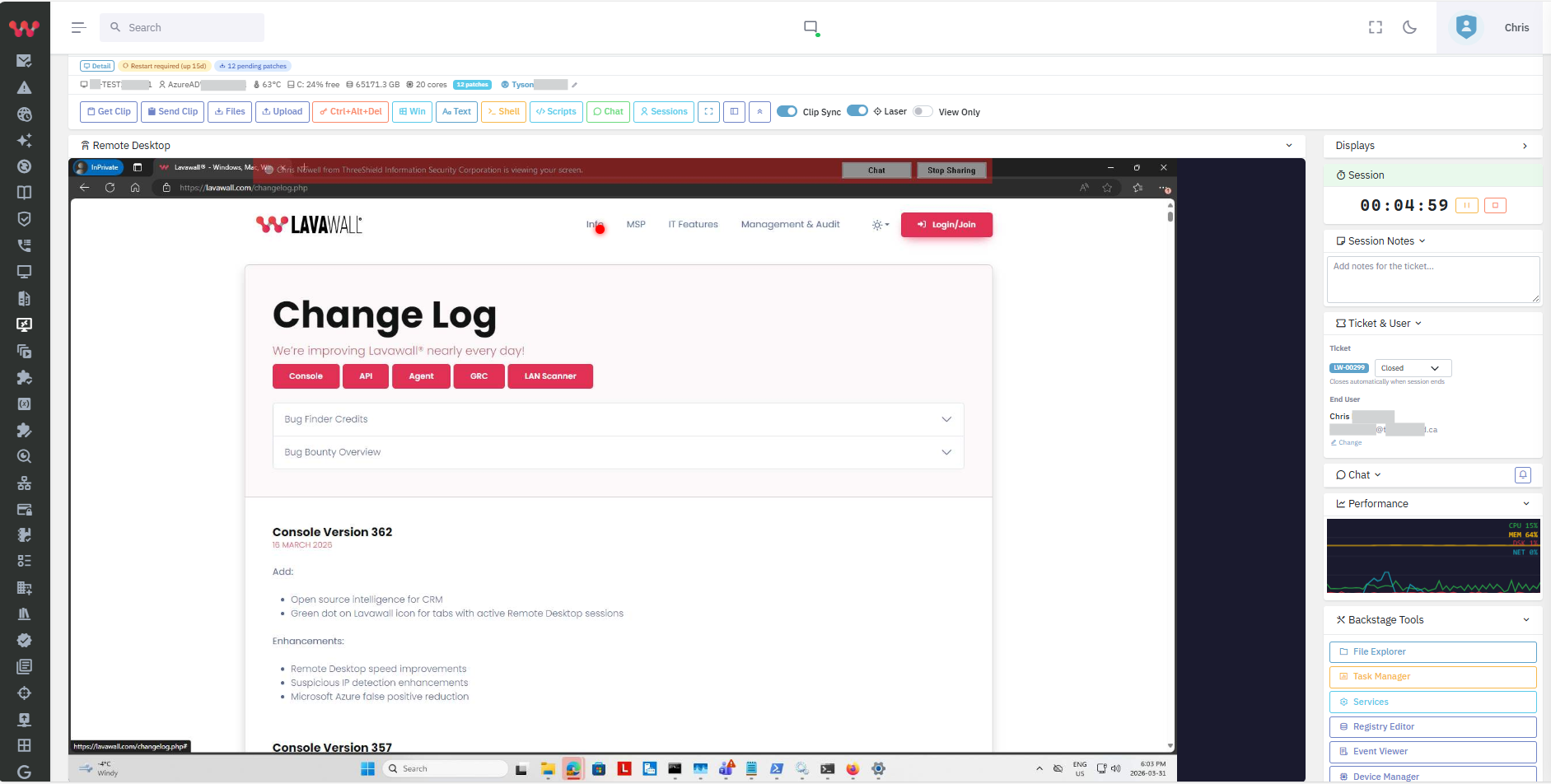
Of course, it has multi-monitor support, instant shell access, and built-in chat.
Throw your expectations out of the window because it amps up your capacity and capabilities on every level:
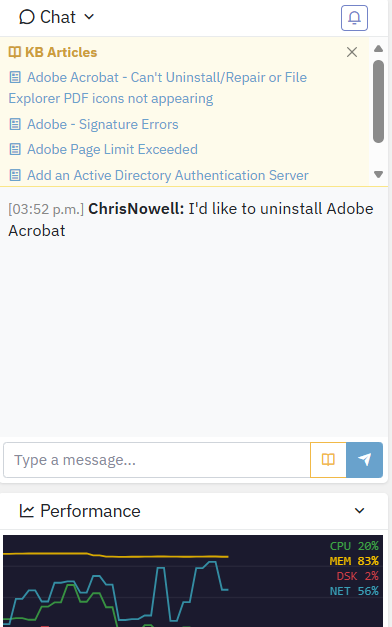
- The chat automatically brings up knowledge base articles as you or your client type.
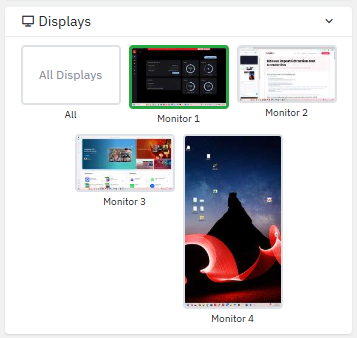
- The multi-monitor view has thumbnails to make it easy to find the right device.
- We added an innovative Laser Pointer so you can easily guide your client.
- Patching, Refresh, Temperature, Disk, RAM, CPU, and other performance data right on the remote support screen.
- Easily:
- send and receive files
- trigger scripts
- open tools with admin permissions
- work from your phone as if you’re in the office
- move the remote mouse with ZERO lag.
- fill in the ticket and timekeeping right from the remote support screen
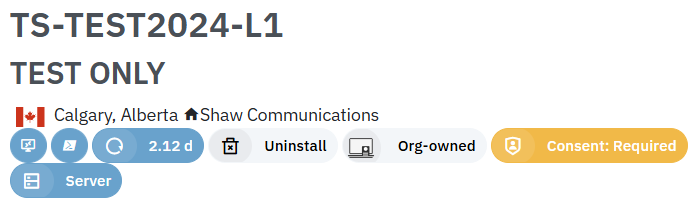
Give your clients comfort knowing that you’ll request permission before connecting to their screen.
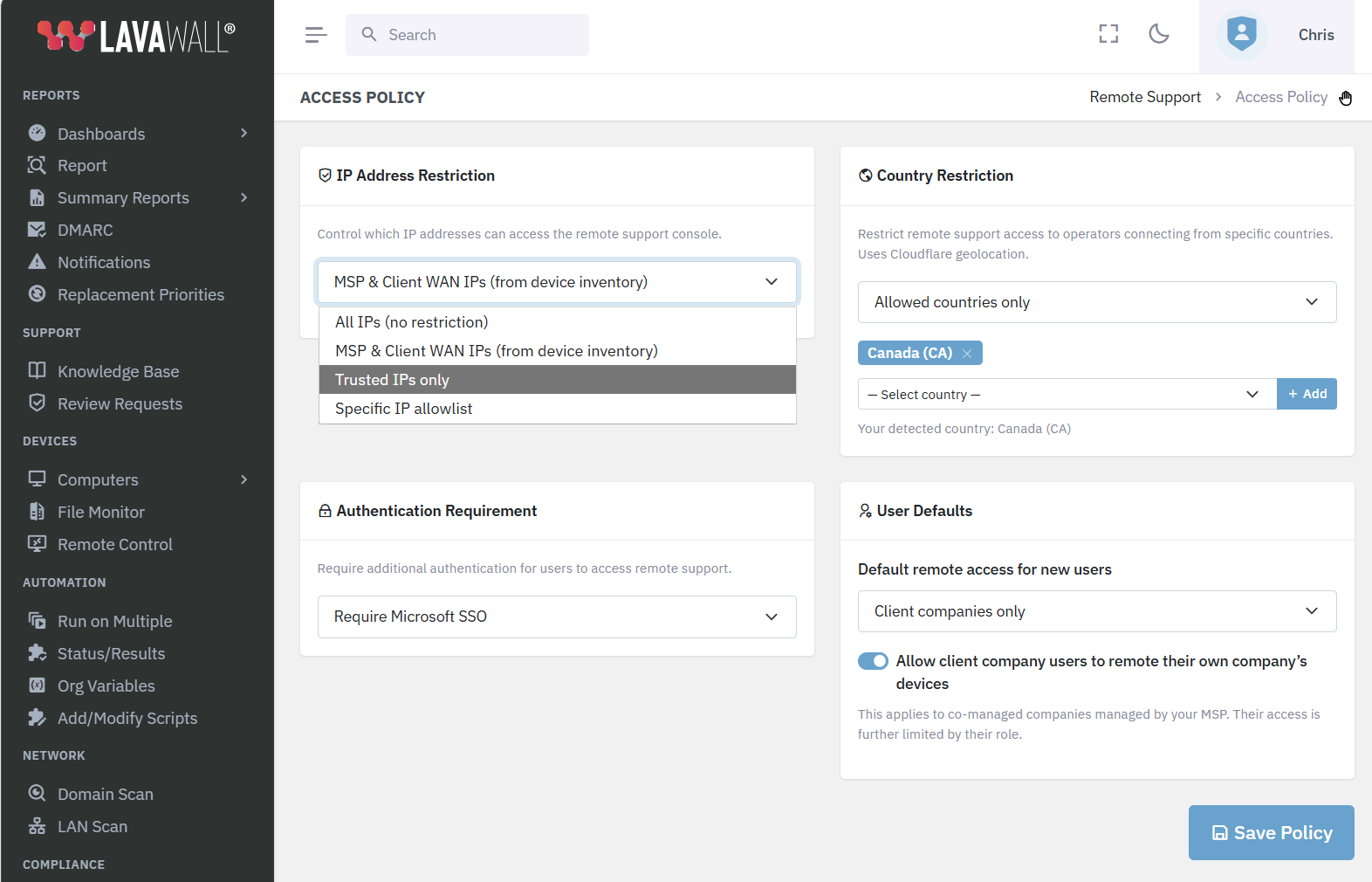
You can allow some staff to override this setting, limit the IP addresses and countries that can remotely manage devices, and more.
Security first
Lavawall® brings you unmatched security awareness and support ease without sacrificing your clients' security. We have back-end authentication behind the scenes at every level to keep you and your clients safe. Some of the controls we have implemented include:
- Never broadcasting or allowing direct external access to the endpoints
- Limited access between systems
- IP address restrictions
- Country-level restrictions (enabled by default)
- Authentication strength restrictions
- Certificate-level verification for the server and the clients
- No reliance on frequently-breached remote control tools like ScreenConnect, SplashTop, TeamViewer, Remote Desktop, Solar Winds, etc.
- Granular user access controls
- Comprehensive logging for GUI desktop sessions, shell sessions, and shell commands
Give your users the confidence of consenting to connections and a notification bar to let them know when you’re watching their screen.
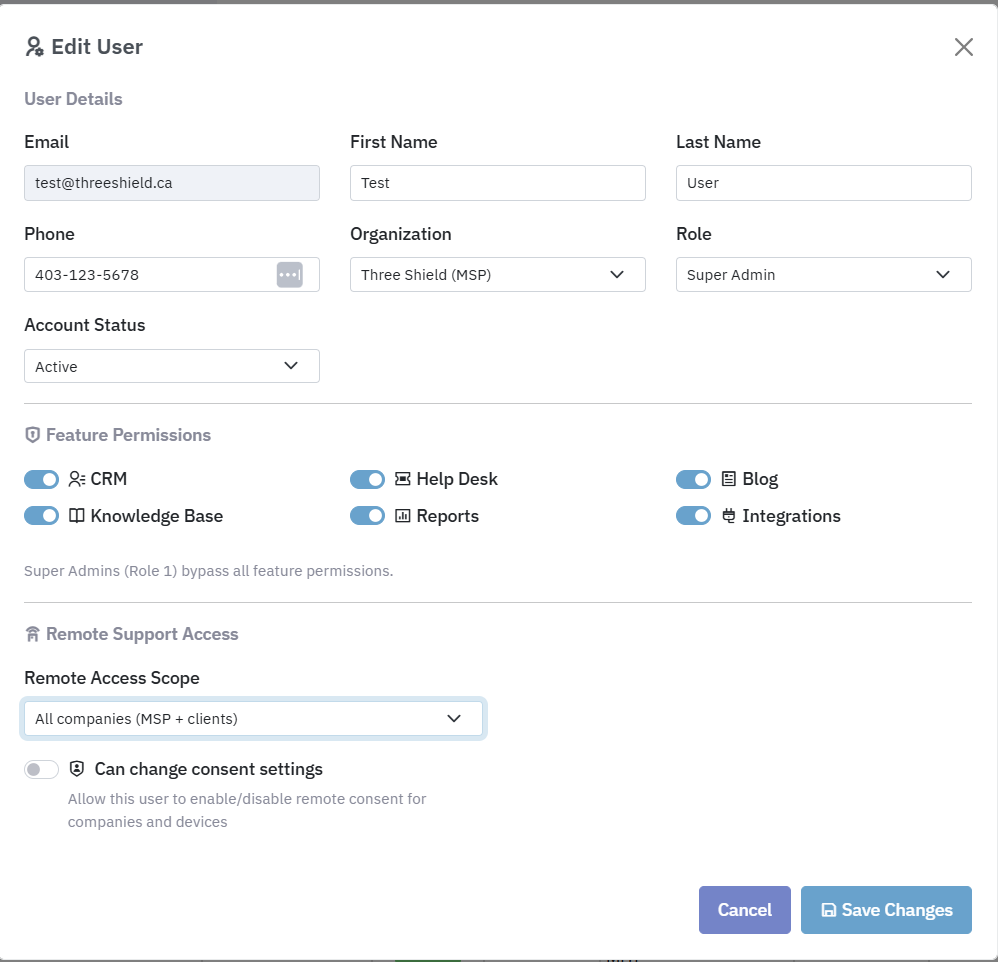
Set up consent requirements by company or computer.
Restrict where techs can use remote support and what they need to do so.
Enriched data to delight users and save time
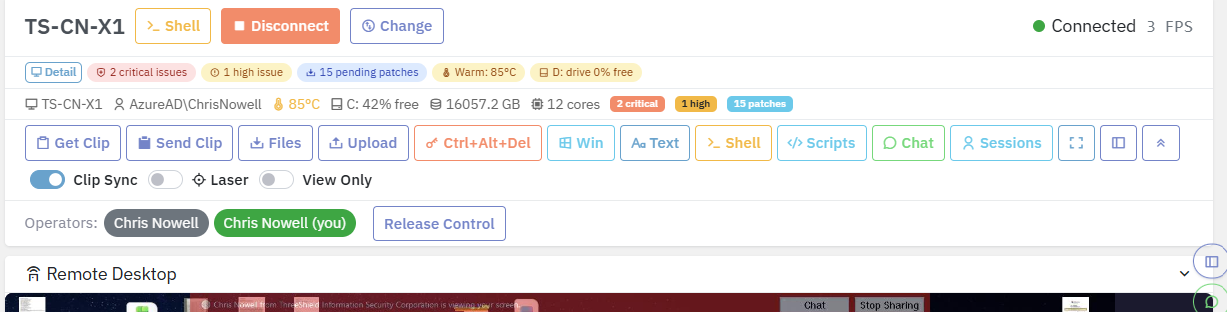
Above the remote desktop window, you’ll see critical reliability information from disk space and temperature to missing patches and pending restarts.
This saves tech time, makes support seamless, and delights your users. Of course, it can be easily collapsed and hidden in full screen mode.
Avoid embarrassment and wasted time looking up issues during chats with users during screen sharing remote support sessions!
Lavawall® automatically shows you relevant knowledge base articles as you or your client type in the chat.
Multi-Monitor Support
Simple thumbnails let you easily select the monitor or monitors you want to see. Automatically resized for efficient viewing and minimal bandwidth -- even on slow connections
Multi-Operator & Multi-Client Support
At the top of the Remote Support system, you’ll see a list of operators or technicians who have connected to the remote computer.
This makes it really easy for teams to collaborate on a support ticket and share ideas.
We even solved the problem of techs stepping on each others’ feet with a simple Take Control button that lets you control the mouse and keyboard.

Fast full-colour PowerShell -- even on your phone!
Want to make some quick changes behind the scenes without bothering the user?
Need to run some PowerShell commands with system access during a support session and don’t rant to reveal things to the user?
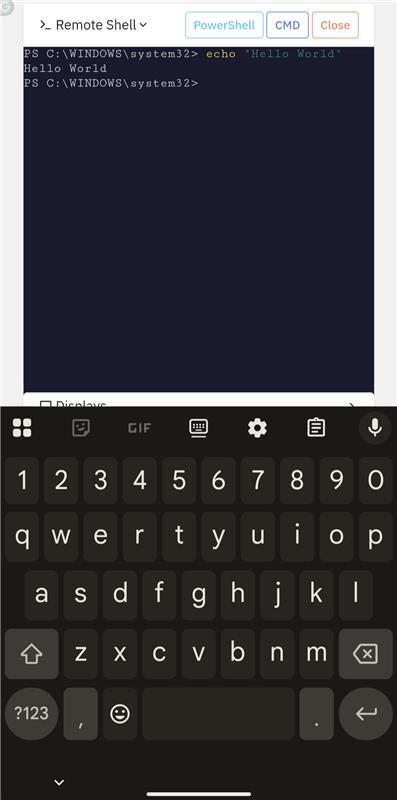
We have you covered. Just click Shell in the top bar to quickly scroll down to the Remote Shell to get a very fast, full-colour PowerShell window like you're right on the computer!
Lavawall® makes it super easy on mobile devices as well with a full keyboard to make you a super hero, even at the arena during a hockey game!
The mobile interface lets you easily zoom in and out, highlight, right-click, type, etc. using natural gestures (use two fingers to right-click, tap and drag for drag).
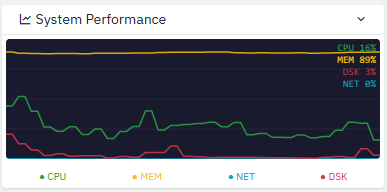
Real-time performance stats
Of course, you can easily see historical and real-time performance metrics and processes in the device details, but
you don’t have time to clikc around or open task manager during a call with a stressed out client on a tight deadline.
That’s why we put real-time performance statistics right on the remote support page!
User Confidence
Users want to know when you’re on their computers. It gives them more confidence that you respect their privacy.
That’s why we refuse to get rid of our branded notification bar. It shows your company information (not Lavawall®) and tells them exactly who they’re working with -- not just some random “Operator.”
We don’t understand why ScreenConnect got rid of theirs, but we won’t get rid of ours.
Also, you can optionally request that users provide consent before you connect.

Quick Access
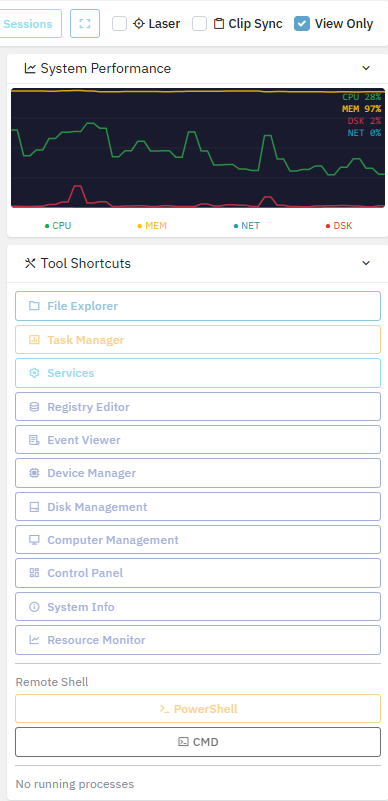
Every second counts when supporting frustrated users. That’s why we put quick shortcuts to popular tools right in the remote support console.
From a web browser on a desktop or mobile device, you can open the tools you need with Administrator access with just one click.
You can even synchronize your clipboards between your computer and theirs (or not. your privacy. your choice), watch without frustrating them when you move your mouse, or use our proprietary Laser Pointer Mode to point to things on the screen and train the user to help themselves!
Backstage — work without bothering the user (a better ScreenConnect Backstage)
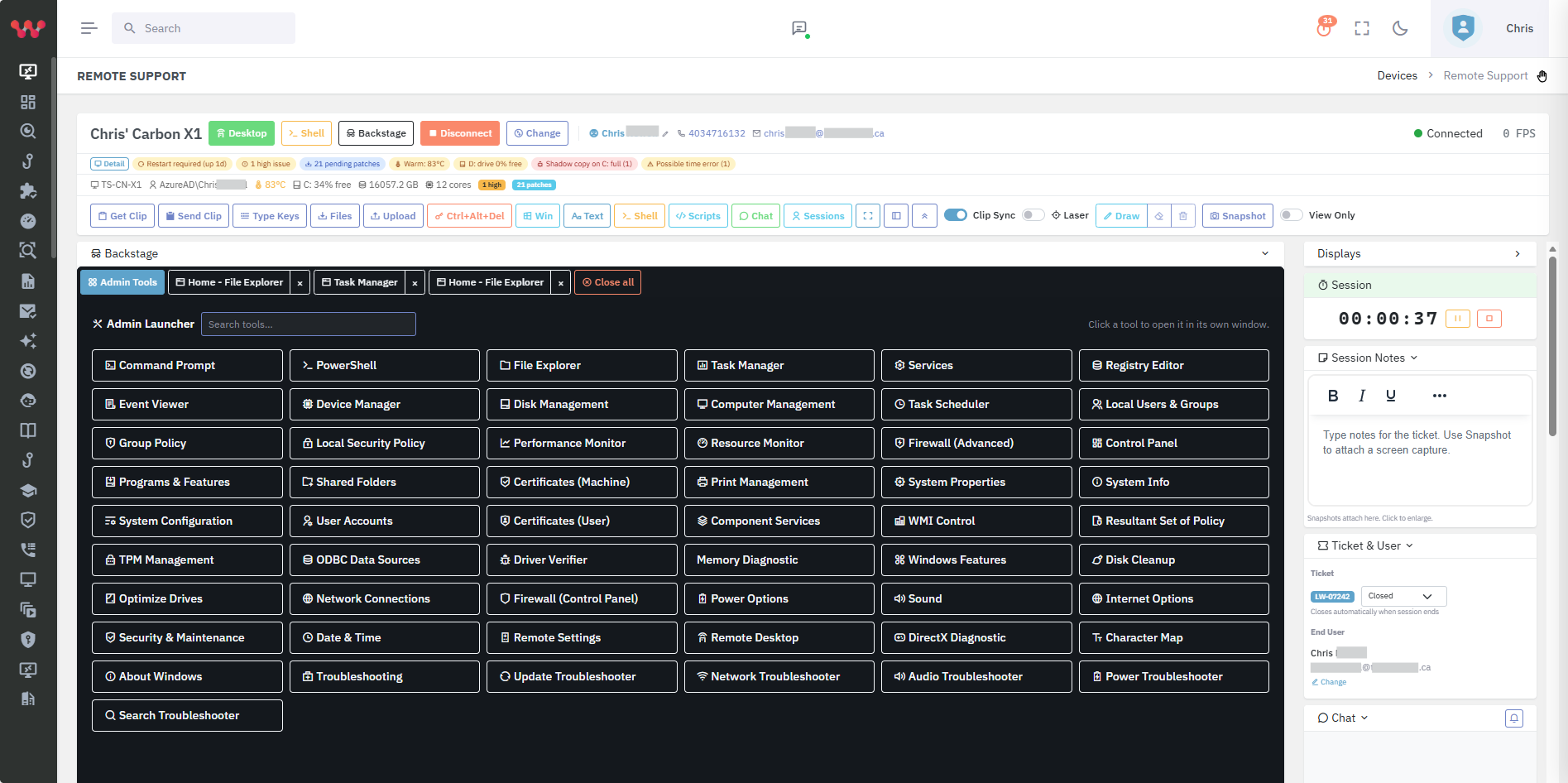
Sometimes you need to edit the registry, restart a service, run an installer or dig through Event Viewer without taking over the screen or interrupting the person working at the machine. That’s Backstage.
Unlike a normal remote-desktop takeover, Lavawall® Backstage opens a hidden, isolated desktop the local user never sees. They keep working in their own session, completely undisturbed — no flashing screen, no moving cursor, no “someone is controlling my computer!” panic — while you quietly run administrative tools in the background.
We went further than ScreenConnect’s Backstage: every admin tool you launch appears as its own tab in the web console, captured and controlled independently, so you can jump between the Registry Editor, Services, Event Viewer and an elevated PowerShell window like a proper window manager — right from your browser, on desktop or mobile.
Over 45 Windows management GUIs are built into the Admin Launcher, each a single click and launched elevated:
- Registry Editor, Services, Event Viewer, Device Manager, Disk Management, Computer Management
- Task Scheduler, Local Users & Groups, Group Policy, Local Security Policy, Windows Firewall (Advanced)
- Performance & Resource Monitor, System Configuration, System Information, Component Services, WMI Control
- Certificates, Print Management, Shared Folders, TPM Management, Driver Verifier, ODBC, Memory Diagnostic
- Control Panel applets (Network, Power, Sound, Internet, Programs & Features) and the modern Windows Settings app
- Elevated Command Prompt and PowerShell — plus a File Explorer that opens as a real window, not the whole desktop
No consent prompt and no notification bar appear for Backstage — because the user isn’t affected. The instant you cross over to their real desktop, the branded notification bar returns and (if you require it) consent is requested. Your privacy model, enforced automatically.
Captured tool windows stay crisp — they never upscale past 100% — and everything runs over the same secure, multi-tenant, multi-operator channel as the rest of Lavawall® Remote Support.
Chat, file transfer, sessions
Of course, we also have the standard table steak features:
- Send files and have the folder you send to automatically open.
- Browse through their drives and files and easily remotely download files
- Send Control+Alt+Delete
- Chat with the user during the support session
- Change sessions to interact with specific users in Remote Desktop situations
- CMD and PowerShell access
If you have any questions or need further assistance, feel free to reach out through our chat, phone or email on our contact page!