Comprehensive Correlated Reports
Lavawall® brings together:
- Comprehensive domain information
- Linux, Mac, and Windows endpoint vulnerabilities and configurations
- LAN scanning, network devices, and printer consumables
- Google Workspace breaches and configuration
- Microsoft 365, Entra, and Azure breaches and configuration
- EDR information from providers such as Huntress and Sophos
- Backup provider information
- Compliance audits and controls from frameworks like CIS, NIST CSF, NIST SP 800-171, Canadian Centre for Cyber Security Guidance, ISO 27001, CMMC, SOC2, Canadian Cyber Essentials, Essential Eight, HIPAA, Alberta Health Information Act (HIA), BC HIA, PIPEDA, PCI, CPA Canada Cybersecurity Framework, Ontario Cybersecurity Framework, BC Financial Services Authority Security Guidance, and others
- RMM information
- Nessus Professional network scans
This incredible correlation allows you to automatically fill in compliance questionnaires and generate professional reports in seconds.
How to automatically generate a cybersecurity report for MSPs
- Open the Lavawall® console
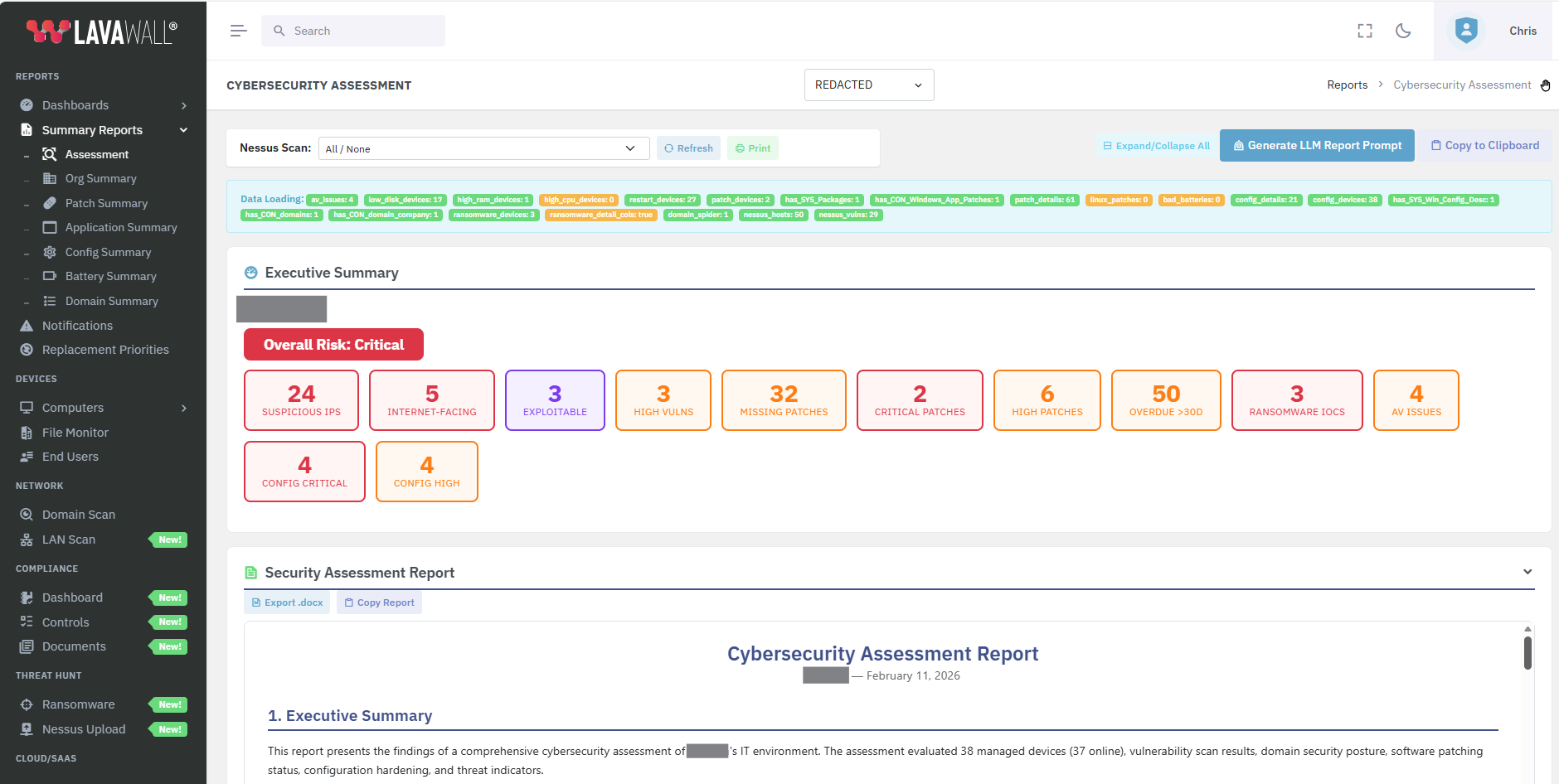
- Under Summary Reports, click Assessment
- Expand the Security Assessment Report section to view the report
- Click Export .docx to export to a Microsoft® Word® file, or click Copy Report to copy the contents to paste manually
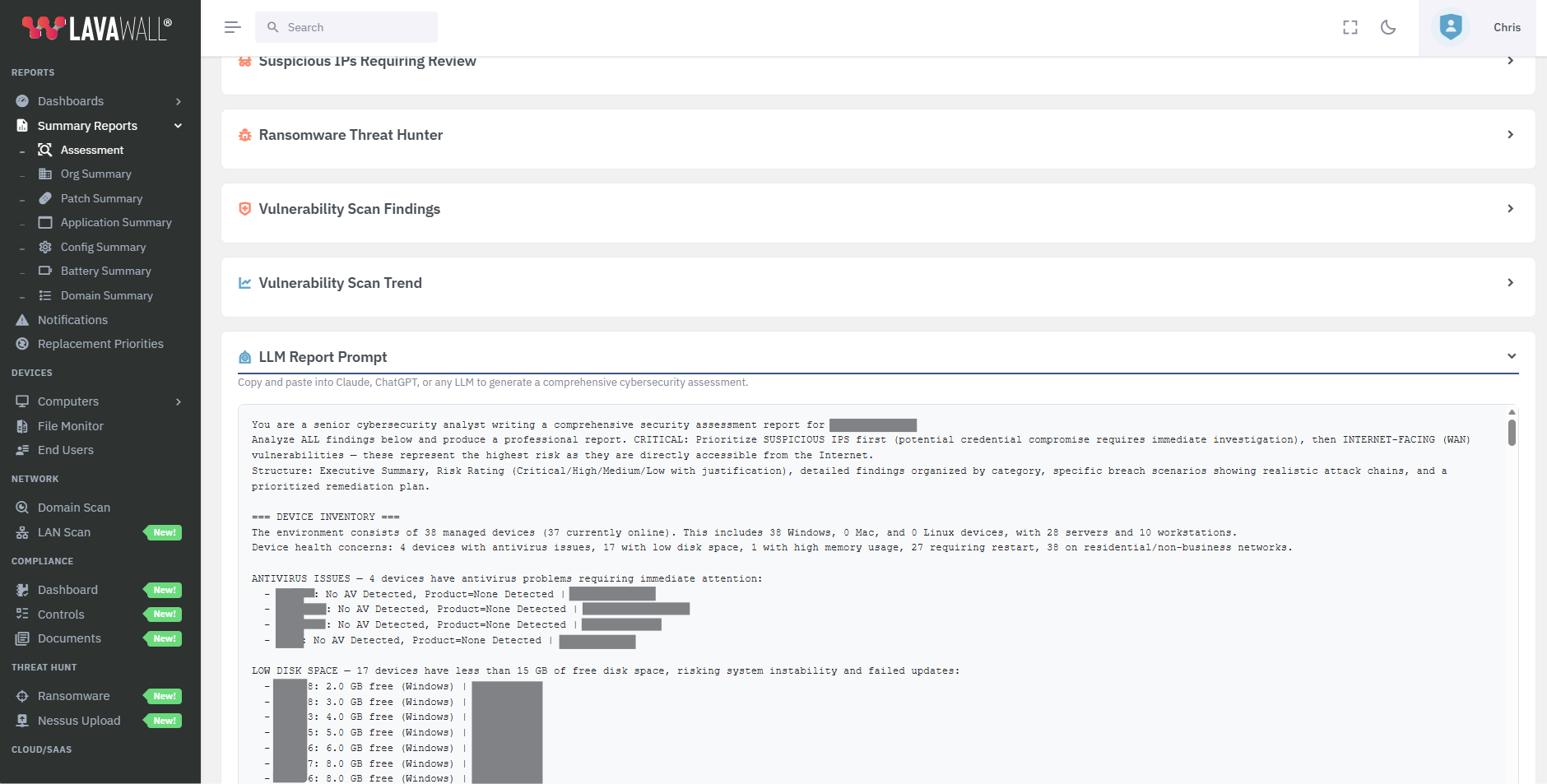
You can also scroll down to the bottom and expand the LLM Report Prompt to copy and paste a prompt with the required information to paste into Claude, ChatGPT, CoPilot, or any LLM to generate a comprehensive security assessment.
Note: make sure that your LLM is not set to use the information for training purposes and your agreement will not divulge sensitive client information
How to Process Nessus Results for Automatic Cybersecurity Report
Nessus is a great vulnerability scanner, but its reports aren’t suitable for reports.
- In Nessus, open your scan and click Export in the top right corner.
- Select Nessus as the data type
- Save the .nessus file
- Open the Lavawall® console
- Under Threat Hunt click Nessus Upload
- Select the scan type and give an optional description and notes and then drag your .nessus file into the box that says Drop a .nessus file here or click to browse
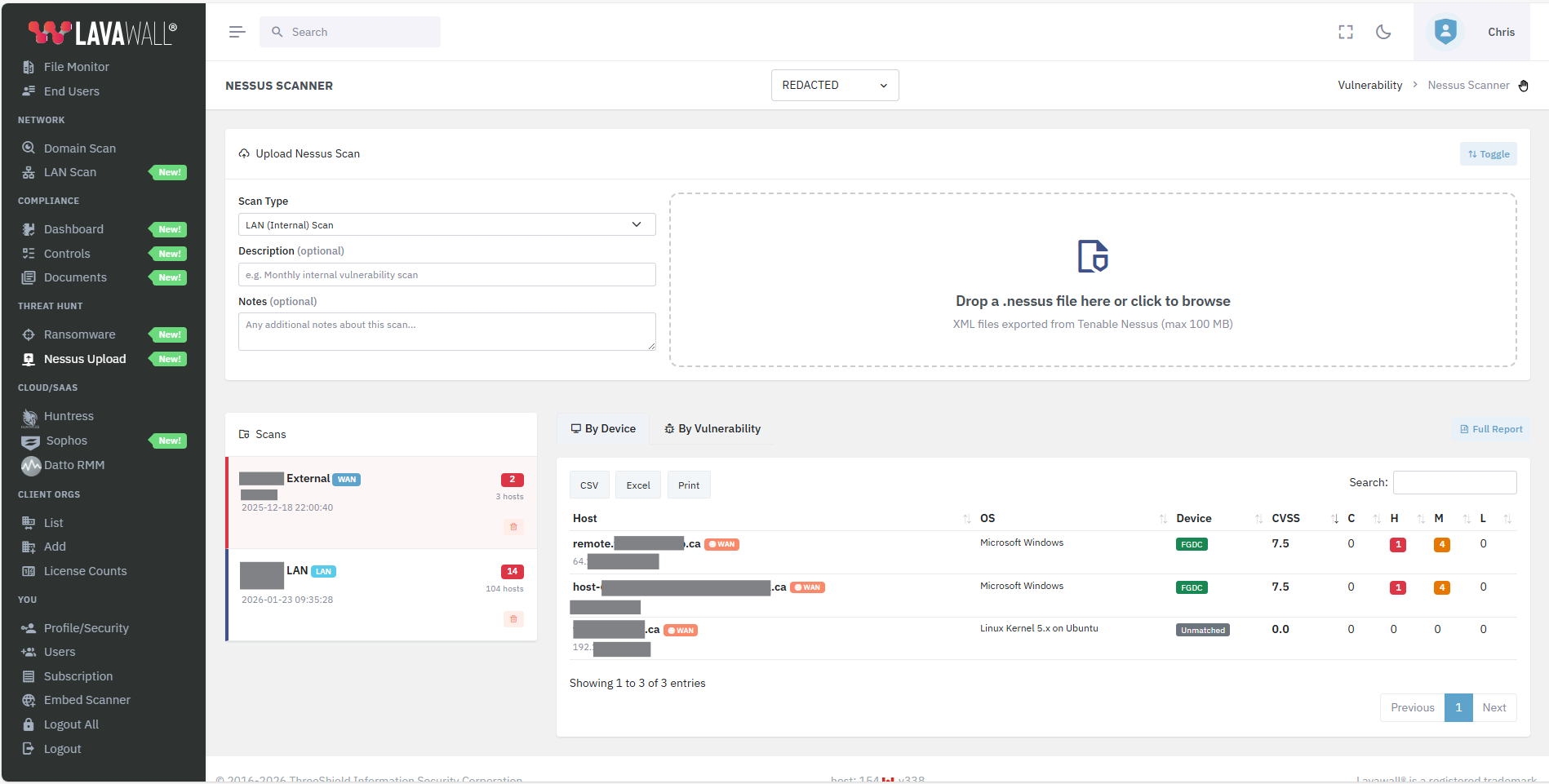
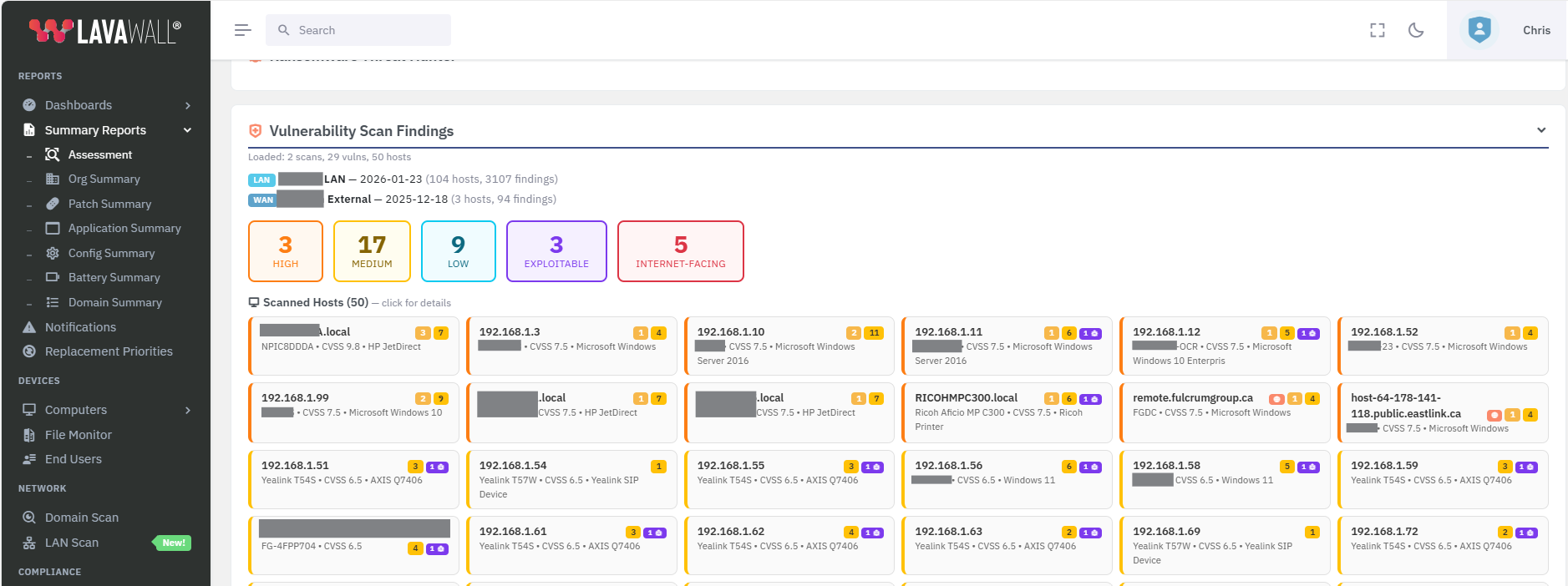
Lavawall ® will automatically process the results and give you a summary of the issues.
You can click By Vulnerability to get a summary of the issues in each report by Nessus Plugin, or click By Device to view them by device.
Lavawall® will automatically match the Nessus findings with devices that have Lavawall® agents installed and show any available exploits.
Click any plugin for its details.
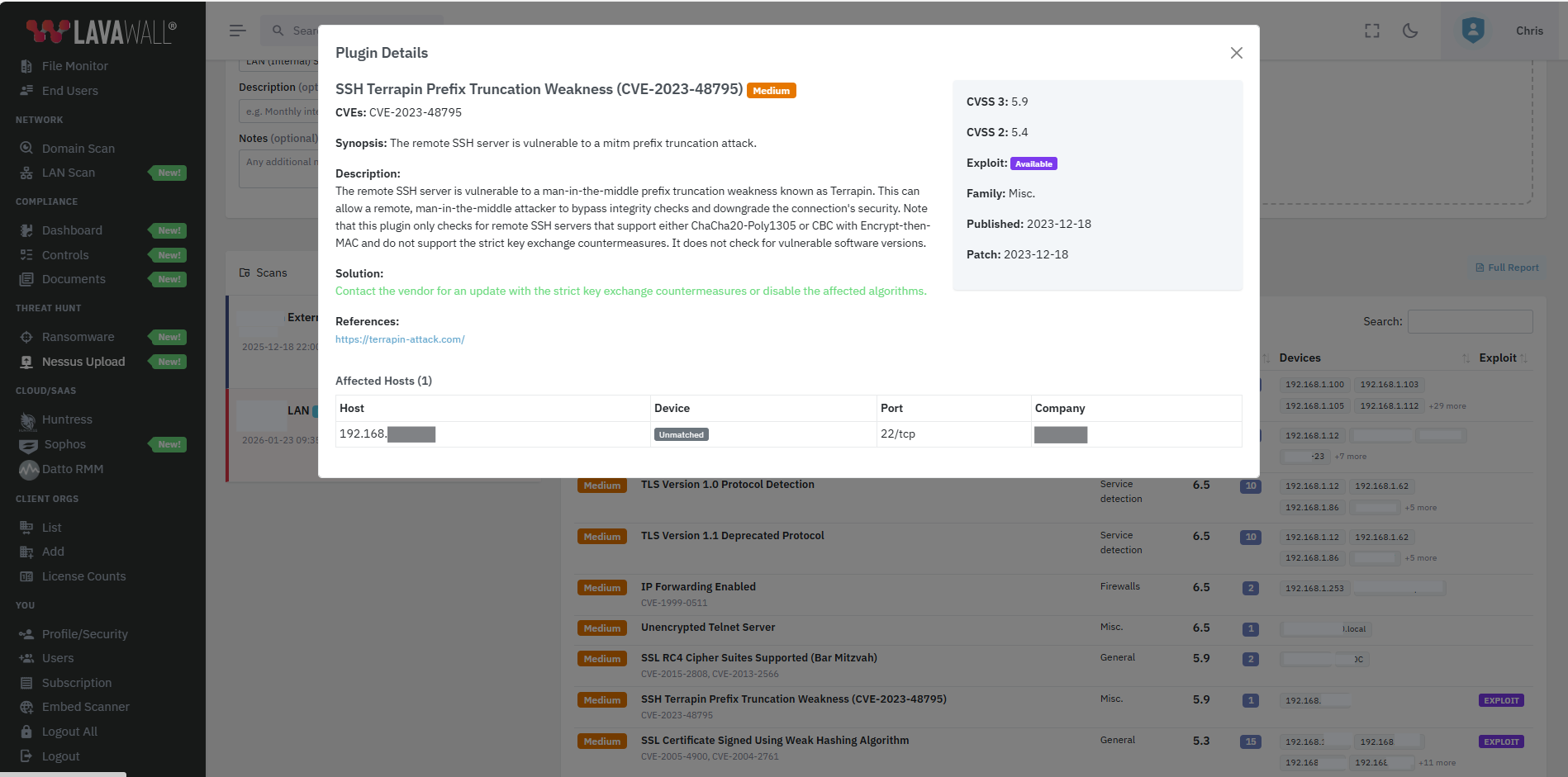
Nessus reports can be frustrating to correlate to devices when you only have an IP address or host name.
Lavawall® uses information from our own LAN scans and agents to correlate devices to actual device names, models, and other information.
Click any of the colour-coded hosts or prioritized vulnerabilities for more information. Yes, Nessus does obtain SNMP information; however, you have to dig through all of the informational findings to get at it. Lavawall® brings everything in one place.
If you have any questions or need further assistance, feel free to reach out through our chat, phone or email on our contact page!